


Installing a certificate may seem straightforward. You have received confirmation from your Certificate Authority (CA) that your certificate has been issued, installed it on your server, and configured your application to use the new certificate.
Despite successfully installing the certificate, your application may still encounter issues. Users may experience certificate errors when establishing TLS connections, the application may continue to use the previous certificate, or an expired or invalid certificate may still be presented.
This is because installing a certificate involves more than simply placing it in a folder on your server.
For a certificate to work correctly, it must be valid for the intended service, the corresponding private key must be available, the correct certificate chain must be configured, and the application must be configured to use the new certificate.
This article covers five common issues administrators may encounter after installing a new certificate, along with steps to troubleshoot and resolve them.
Why Installation Does Not Always Mean Success
Installing a certificate in a server’s certificate store does not necessarily mean that the application will automatically start using it.
Depending on the application, additional configuration may be required. For example, the application may need a new TLS binding, or the service account running the application may require permission to access the certificate’s private key.
Moreover, if the certificate was issued by an Intermediate CA, the server may need to present the corresponding Intermediate CA certificate to allow clients to establish a complete chain of trust.
The following sections cover five common issues that may occur after certificate installation and how administrators can troubleshoot them.
- The Application Is Still Using the Previous Certificate
One of the most common issues is that the replacement certificate has been installed, but the application is still configured to use the previous certificate.
For example, the certificate store may contain the following certificates:
| Certificate | Expiry Date |
| Previous certificate | 10 October 2026 |
| Replacement certificate | 10 October 2027 |
Although the replacement certificate has been installed on the server, the web server, proxy, load balancer, or application may still be configured to use the previous certificate.
Some applications may also cache certificate information, requiring a service or application restart before the replacement certificate takes effect.
Items to verify:
- Confirm which certificate the application is currently using
- Check whether the TLS binding has been updated to reference the replacement certificate
- Restart the service or application if required
- Connect to the actual application endpoint and verify which certificate is being presented
- Incomplete Certificate Chain
A TLS certificate is normally part of a certificate chain that allows clients to verify its authenticity and establish trust.
Even if the certificate has been installed correctly, clients may still encounter certificate trust errors if the required Intermediate CA certificate is missing or the server is not presenting the certificate chain correctly.
The client must be able to build a valid certificate chain from the server certificate to a trusted Root CA.
While some clients may already have the required Intermediate CA certificate or retrieve it automatically, this should not be relied upon when configuring the server.
Items to verify:
- Confirm that the correct Intermediate CA certificate is installed and configured
- Verify that the server presents the required Intermediate CA certificates
- Check whether the client can build a complete certificate chain
- Confirm that the certificate chain leads to the expected trusted Root CA
- Missing Private Key
Applications performing TLS server authentication require access to both the certificate and its corresponding private key.
A certificate may be installed successfully, but the application will not be able to use it for TLS server authentication if the corresponding private key is missing or inaccessible.
Certificate file formats may also affect how certificates and private keys are imported. For example, .cer and .crt typically contain the certificate without its private key, and .pfx and .p12 can contain the certificate, its corresponding private key, and the certificate chain.
Items to verify:
- Confirm that the corresponding private key is available and matches the certificate
- Verify that the service account has the necessary permissions to access the private key
- Check that the certificate is installed in the correct certificate store
- If a cryptographic device, such as a Hardware Security Module (HSM) or cryptographic token, is used, confirm that the application can access the private key through the appropriate cryptographic provider or interface
- The Certificate Does Not Match the Service Name
The DNS names used to access an application must be covered by the certificate’s Subject Alternative Name (SAN) extension.
For example, if an application is accessible through the following URLs: portal.example.com and portal-dr.example.com, the certificate must cover both DNS names, either through individual SAN entries or an appropriate wildcard certificate.
If the DNS name used by the client is not covered by the certificate, the client may report a certificate name mismatch even if the certificate was issued by a trusted CA.
Items to verify:
- Confirm the DNS name used by clients to access the application
- Check whether the DNS name is covered by the certificate’s SAN extension
- Review any recent changes to DNS records, application URLs, or service endpoints
- Ensure that all required DNS names are identified before requesting or renewing the certificate
- The Certificate Does Not Meet Application Requirements
Different applications may require certificates with specific properties, depending on their intended purpose and configuration.
For example, a certificate issued for client authentication may not be suitable for an application that requires a certificate for TLS server authentication.
Certificates may be issued for different purposes, including:
- Server authentication
- Client authentication
- Secure email
- Document signing
- Code signing
- Time stamping
Applications may also impose additional requirements relating to the key algorithm, key size, signature algorithm, certificate format, certificate store, or private-key provider.
Even if a certificate is valid and issued by a trusted CA, the application may reject it if these requirements are not met.
Items to verify:
- Check the certificate’s Key Usage and Extended Key Usage (EKU) extensions.
- Verify that the key algorithm and key size meet the application’s requirements.
- Confirm that the application supports the certificate format.
- Review any application-specific requirements relating to certificate storage, signature algorithms, and private-key providers.
Verify the Certificate from the Actual Endpoint
After installing and configuring the replacement certificate, administrators should perform post-installation checks to ensure that the application is presenting the expected certificate.
The following checklist can be used:
| Step | Post-Installation Check |
| 1 | Confirm the replacement certificate is installed |
| 2 | Verify the matching private key |
| 3 | Confirm that the certificate chain is complete |
| 4 | Update the application configuration to use the replacement certificate |
| 5 | Restart the service if required |
| 6 | Connect to the actual endpoint using the intended DNS name |
| 7 | Inspect the certificate being presented |
| 8 | Test the application to confirm that the service is functioning correctly |
It is important to perform these checks against the actual endpoint used by clients.
For example, a TLS connection may pass through a load balancer, reverse proxy, gateway, or other intermediary before reaching the application server.
Depending on where TLS termination occurs, the certificate presented to users may differ from the certificate installed on the back-end server.
Therefore, checking only the certificate store on the application server may not accurately reflect the certificate that users receive.
Conclusion
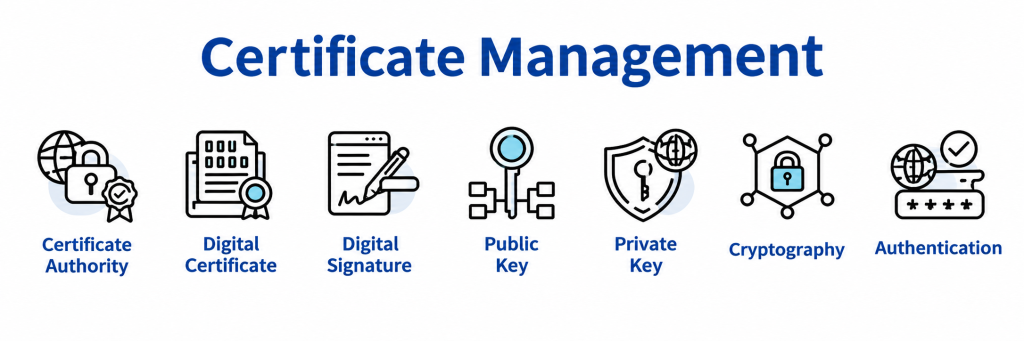
Installing a certificate does not necessarily mean that the application is configured to use it.
Issues may still occur if the application continues to use the previous certificate, the certificate chain is incomplete, the corresponding private key is missing or inaccessible, the service name does not match, or the certificate does not meet the application’s requirements.
Administrators should always verify the certificate presented by the actual application endpoint rather than relying solely on confirmation that the certificate has been installed.
A Certificate Lifecycle Management (CLM) solution can help reduce these risks by providing centralised certificate visibility, monitoring expiry dates, automating certificate renewal and deployment, and tracking certificates across different servers and applications.
However, whether certificates are managed manually or via a CLM solution, post-installation validation remains essential to confirm the application presents the correct certificate and that the replacement completed successfully.
If you are keen to learn find out more about CLM, speak to Netrust to find out how we can help.
Follow us on LinkedIn for the latest happenings/updates.