


In our digital age, if you have ever opened a document in Adobe Acrobat, you may have seen a small green tick announcing that the document is “Signed and all signatures are valid.” You also likely have a rough sense of what a digital signature is, but if the idea is entirely new to you, this introduction to digital signatures is a good place to start.
If you are a developer, producing a basic digital signature is not difficult. At a high level, it comes down to four steps:
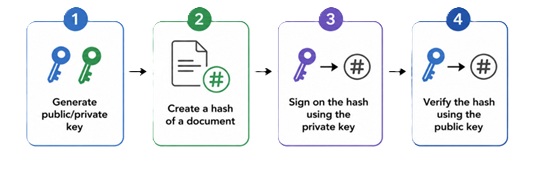
You create a key pair, reduce the document into a hash, sign that hash with your private key to produce the signature, and then let anyone re-compute the hash and use your public key to confirm the signature matches — proving the document has not changed.
Generating a signature this way is straightforward, but it quietly ignores almost everything that makes a signature trustworthy in the real world.
- Who do the keys actually belong to?
- Where are the signature and the signer’s certificate stored?
- And most importantly, how do you ensure that everything needed to verify the signature is still available years later, long after the document was signed and perhaps after the signer’s certificate has expired?
These are not cryptographic problems; they are practical ones. International standards such as PAdES exist precisely to address them, providing a consistent way to sign and verify signatures within PDF documents. In this article, we will unpack what PAdES is, how it works in a PDF and the different levels of signatures available for different use cases.
What is PAdES?
The easiest way to understand PAdES (short for PDF Advanced Electronic Signatures) is to build it up one layer at a time.
Let’s start with the document itself. As was shown earlier, signing does not act on the whole file directly. The PDF is first reduced to a hash, and it is this hash that is signed with the signer’s private key to generate the raw signature. You also need to be able to identify and verify that the signer is who they claim to be. To do so, these keys will have to be issued by a trusted Certificate Authority (such as Netrust), which would verify the signer’s identity through a registration process and issue the signer a certificate that ties the public key to their identity. Now you need somewhere to store the signature, the signer’s certificate, along with all the information associated with the Certificate Authority so that the signature can be verified in the future. That somewhere is a signature container called CMS (Cryptographic Message Syntax), the format that grew out of the earlier PKCS#7 standard. CMS is a general-purpose container that holds all this information together along with a few required pieces of information known as signed attributes.
CMS proves that something was signed, but it lacks the framework for extensive validation. CAdES (CMS Advanced Electronic Signatures) extends CMS to carry precisely this kind of trust evidence: certificates, timestamps, and revocation information.
PAdES is the final layer. It takes the CAdES approach and defines how to embed it correctly inside a PDF. In short, CMS packages the signature, CAdES adds the trust evidence, and PAdES makes it all work properly within the structure of a PDF file.
Where the signature lives inside the PDF
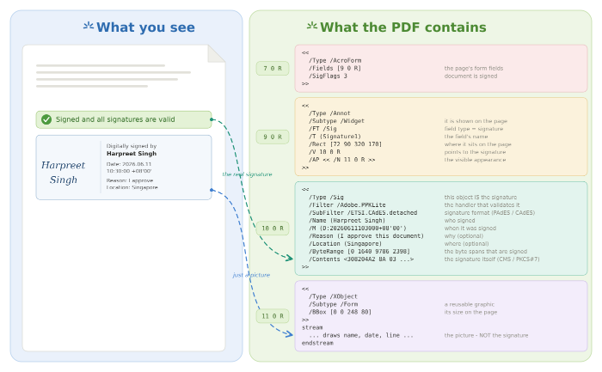
So where does all this actually sit? Inside a signed PDF, the signature lives in a dedicated signature dictionary. The CMS/CAdES blob goes into its /Contents entry, and a /byteRange records exactly which bytes of the file the signature covers. When a signature level calls for extra validation evidence, such as revocation information from the issuing certificate authority, that material is stored separately in a Document Security Store (DSS) within the same file.
The Four PAdES Baseline Levels
PAdES defines four baseline levels. The clearest way to think about them is as a ladder, where each step adds what the previous one lacked.
B-B (Basic) – captures the signing act.
B-B (the B at the front stands for baseline) is the foundation. It contains the CMS signature, the signing certificate, and the required signed attributes — enough to prove that the document has not been tampered with since it was signed.
What it does not provide is trusted proof of when the signature was created. A claimed signing time may be present, but nothing independent vouches for it. That makes B-B a good fit for documents that are unlikely to outlive their signing certificate: short-lived internal approvals, simple acknowledgements, and other low-risk workflows.
B-T (with Timestamp) – proves when it happened.
B-T builds on B-B by adding a trusted timestamp — specifically an RFC 3161 timestamp token issued by a TSA (Time-Stamping Authority), an independent service that vouches for the moment a piece of data existed.
This matters because it anchors the signature to a point in time. If the signer’s certificate is later revoked or expires, the timestamp still proves the signature existed beforehand so that a verifier can confirm it was created while the certificate was valid. That makes B-T appropriate wherever the time of signing carries weight, such as contracts and procurement documents.
B-LT (Long Term) – packages the evidence needed to validate it later.
B-LT extends B-T by requiring that all validation evidence be embedded in the PDF’s Document Security Store (DSS). In practice, this means the certificates in the trust chain along with revocation data: OCSP (Online Certificate Status Protocol) responses, which are a point-in-time check of whether a certificate has been revoked, and CRLs (Certificate Revocation Lists), which are published lists of revoked certificates.
By capturing this evidence at signing time, B-LT lets a verifier confirm that the certificate was valid when the document was signed — without depending on external servers that may be slow, changed, or simply gone years later. Everything needed to validate the signature travels inside the PDF itself. This suits documents that will almost certainly outlive their certificates, such as compliance and audit records.
B-LTA (Long Term Archival) – seals that evidence for long-term archival.
B-LTA is the most robust level. It takes everything in B-LT and adds a document timestamp that covers the entire signed PDF, including its validation evidence.
B-LTA is built for documents that must endure for decades — land records, deeds, and court evidence.
How to check PAdES Signature Level
You will rarely get to choose a PAdES level — that decision was made by whoever signed the document, but what you do control is how you check it.
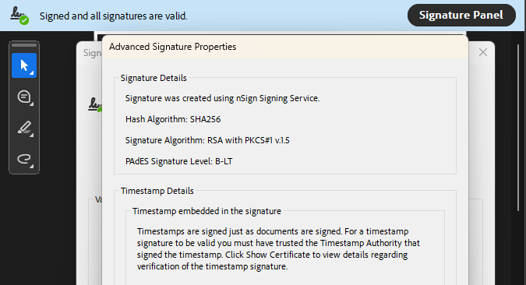
Start by opening the document in a PDF reader that validates signatures, such as Adobe Acrobat Reader. When the panel reports a signature, click its details, then right-click the signature and select “Show signature properties.” If you want to see which PAdES level the document was signed with, click Advanced Properties; the PAdES level will be shown under the signature details section.
Closing Thoughts
That small green tick in Adobe hides a surprising amount of machinery. What looks like a simple signature is really the product of layered standards — CMS packaging the signature, CAdES adding trust evidence, and PAdES fitting it all neatly inside the PDF — together with a deliberate choice about how long, and how strongly, a document needs to stand up.
Follow us on LinkedIn for the latest happenings/updates.